
Calendar view
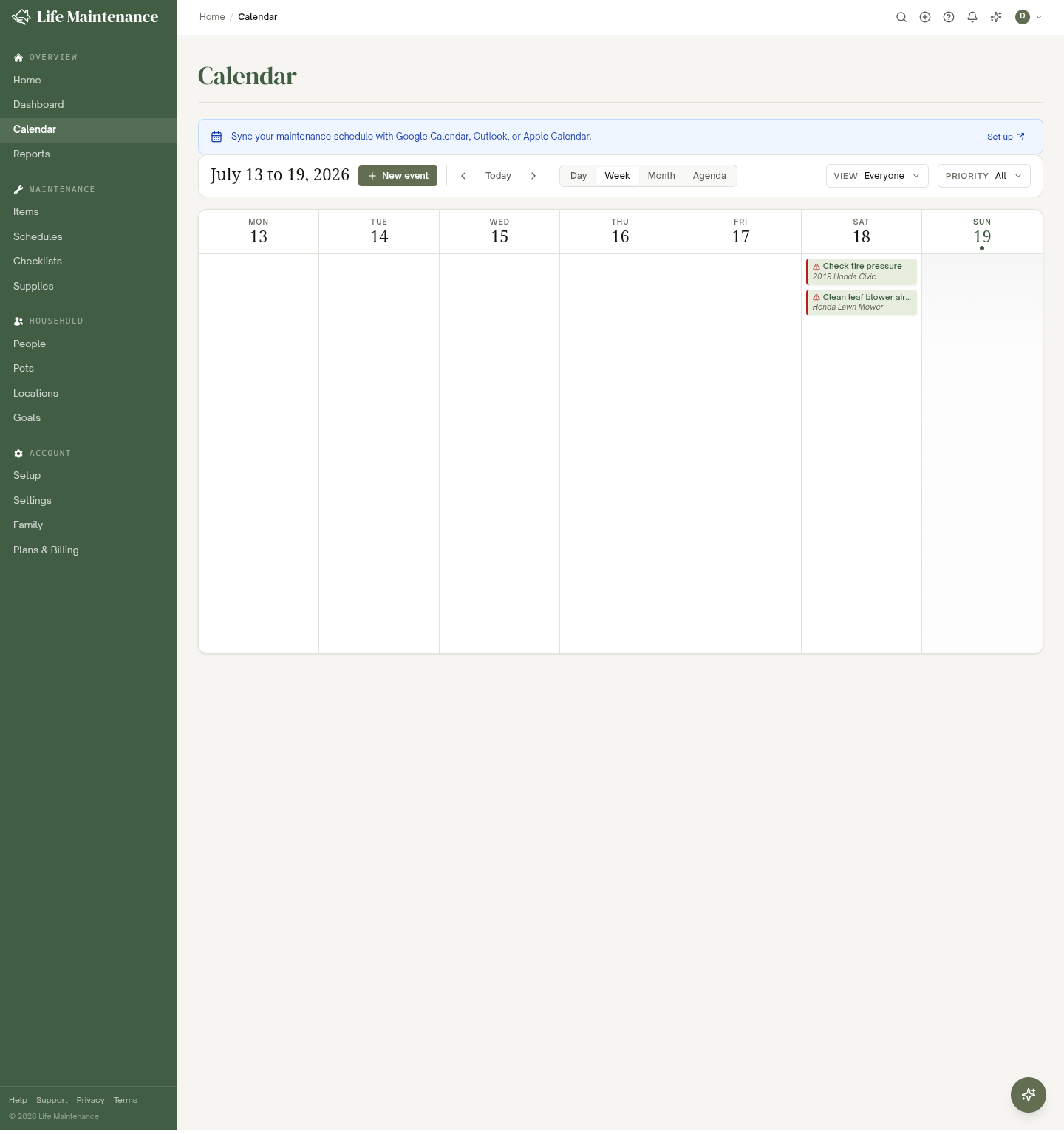
The Calendar page is where everything lands: maintenance schedules, family events, the whole household's week. Four views, handy filters, and sync so it shows up in the calendar app you already use.
What shows on the calendar
- Maintenance schedules with upcoming or overdue dates.
- Family events (anything anyone adds with the New event button), including every occurrence of a repeating event.
- Birthdays for everyone in your household, with the age they turn, taken from each person's date of birth.
- Linked calendars such as a school district or a team calendar, colored for the child they belong to.
- Cross-item groups as a single chip per day instead of one per item.
- Checklist occurrences that have a due date.
What does not show:
- Your personal Google Calendar events, unless you set up Google Calendar sync and chose to mirror them.
- One-time todos that do not have a due date.
Four views
The view tabs sit at the top of the page.
- Day. Today only, with hour-by-hour detail.
- Week. Seven days with time slots, similar to Google Calendar. This is the default.
- Month. The classic grid. Best for planning.
- Agenda. A scrollable list ordered by date. Great for a quick read-down of what is coming.
Your last-used view sticks across visits.
Adding an event
There are two easy ways:
- Click the New event button at the top of the page.
- Click any empty day in the Day, Week, or Month view to open the event form pre-filled to that date.
The form asks for title, date, time, location, who it is for, and whether it should repeat.
End times
An event can have an end time. Choose Add end time under the start to set one. The calendar then shows the range, for example 5:00 to 6:30 PM. An all-day event can span several days: turn on All day and pick an end date. A camp from Monday to Friday shows on every one of those days.
Repeating events
Turn on Repeats to enter something once and get every date. Pick how often (daily, weekly, monthly, or yearly), which days of the week for a weekly repeat, and when it ends: never, on a date, or after a number of times. A line under the controls reads the rule back, for example Every Tuesday and Thursday until Nov 19, 2026.
Every occurrence is a normal event. You can mark one complete, add prep tasks to it, or move it, without touching the others. When you edit or delete an occurrence, the app asks how far the change reaches:
- This event only. The other occurrences stay as they are.
- This and following events. Earlier occurrences stay as they are.
- All events in the series. Every occurrence, past and future.
Occurrences are written a year ahead and extended automatically, so a practice that repeats every week keeps appearing without any action from you. Times stay on the clock you entered across daylight saving changes: a 5:00 PM practice is still at 5:00 PM in November.
Birthdays
Each household member's birthday appears on the calendar automatically, with the age they turn, as long as their date of birth is set on their People record. You get a reminder three days ahead. Birthdays are not events: there is nothing to edit on the calendar, and changing the date of birth on the person moves the birthday.
Prep tasks and templates
A prep task is something to do before the event: return the permission slip, pack the uniform, buy the gift. Each has its own reminder, and the event page shows how many are done. Add one on the event form or on the event page.
A prep template is a list you reuse. Ten come built in, among them game day, field trip, birthday party, and sleepover. On the event form or the event page, choose Add from template and the list is added as prep tasks. A task already on the event is not added twice. Make your own, or copy a built-in one and change it, under Settings > Family > Event prep templates. When the assistant reads a flyer about a game or a trip, it fills the prep tasks from the matching template and shows them on the confirmation card before anything is written.
Linked calendars
A school district, a team site such as TeamSnap or SportsEngine, and most other calendars publish a link that ends in .ics or starts with webcal://. Paste that link under Settings → Calendar sync → Calendar links, give it a name, choose which child it belongs to, and pick a color. The events show up on every calendar in the app, on the wall tablet, and on your phone, in that color, and refresh on their own every few hours.
Events from a linked calendar are read-only here. Change them in the calendar they come from. You can still add reminders and prep tasks to them.
A linked calendar shows how it is doing in Settings: when it was last read, and the reason if the last read failed. Remove a link to remove every event it brought in.
Finding an event
To find an event, type part of its title or location in the Search events box above the calendar. The search covers every date, not only the weeks on screen. Upcoming matches are listed first, then past ones. Every word you type has to appear, in any order, so "dentist mark" finds "Mark's Dentist". A repeating event is listed once.
Choose a result, and the calendar moves to that day and opens the event. Events also appear in the search you open with Ctrl+K.
Filtering
Above the calendar you get two filters:
- View. On the Family plan, show only the tasks and events for one or more household members. Solo accounts do not need this, so it appears only when you have family members.
- Priority. Narrow to High, Medium, Low, or None.
Filters apply across all four views.
Color coding
Schedules and events are color-coded by item category, so car stuff, pet stuff, and home stuff each read at a glance. Priority is shown on each entry too.
Marking things done from the calendar
Click any schedule chip to open it in a popup. From there you can mark it complete, choose Reschedule to move it to a new date, or open the full schedule detail page. No need to leave the calendar.
Calendar sync
A banner at the top of the calendar helps you connect your maintenance schedule to the calendar app you already live in. You set this up under Settings → Calendar sync:
- Google Calendar. One-way sync, from Life Maintenance into Google. See Google Calendar sync for the full walkthrough.
- Apple Calendar or Outlook. Subscribe via an .ics feed. The feed carries your maintenance schedule and your family events, with their end times. Events from a linked calendar stay out of it, so the school calendar does not show up twice.
Once Google is connected, the setup banner steps aside so it is not nagging you.
The wall tablet
The Wall Tablet kiosk shows a touch-optimized version of this same calendar. It is meant to be glanced at from across the kitchen, not stared at up close.
What to read next
- Schedules and reminders to understand what powers calendar entries.
- Google Calendar sync for mirroring into Google.
- Wall Tablet (Kiosk) for the family-facing dashboard.