
Supplies and consumables
Supplies are the small, recurring purchases that keep a household running. HVAC filters, detector batteries, water cartridges, cleaning refills, pet food. Life Maintenance can tell you when to reorder so you do not find out at 9pm on a Sunday.
What counts as a supply
If you buy it more than once for the same purpose, it is a supply. When you add one, you sort it into a category so the list stays tidy:
- Cleaning. Sponges, refills, dishwasher pods, dryer sheets.
- Kitchen. Parchment, filters, foil, storage bags.
- Paper. Paper towels, toilet paper, napkins.
- Health. First-aid and medicine-cabinet consumables.
- Toiletries. Toothpaste, soap, shampoo.
- Baby / Kids. Diapers, wipes, and the rest.
- Pet. Food, litter, treats.
- Office. Printer ink, toner, paper.
- Other. Anything that does not fit the rest.
Adding a supply
- Click the + in the top bar and pick Supply, or open the Supplies page and click Add supply.
- Give it a name. "16x25x1 HVAC filter."
- Optionally paste a product URL and tap Look up. We pull the name, brand, category, pack size, and price from product search automatically.
- Set the pack size (how many come per purchase).
- Set a reorder cadence in days, or use Help me decide to derive one from your past purchase dates.
- Save.
You set stock levels and a low threshold later, from the supply's detail page, once you have it on the shelf.
How reorder timing works
Each supply has a reorder cadence, and the app projects when you are likely to run low based on it. When a supply is projected to run out, its row shows a Likely out flag; otherwise you see a friendly "about N days until out" or "N left, low" note. The "Help me decide" wizard can predict your next purchase date from your history if you would rather not guess the cadence.
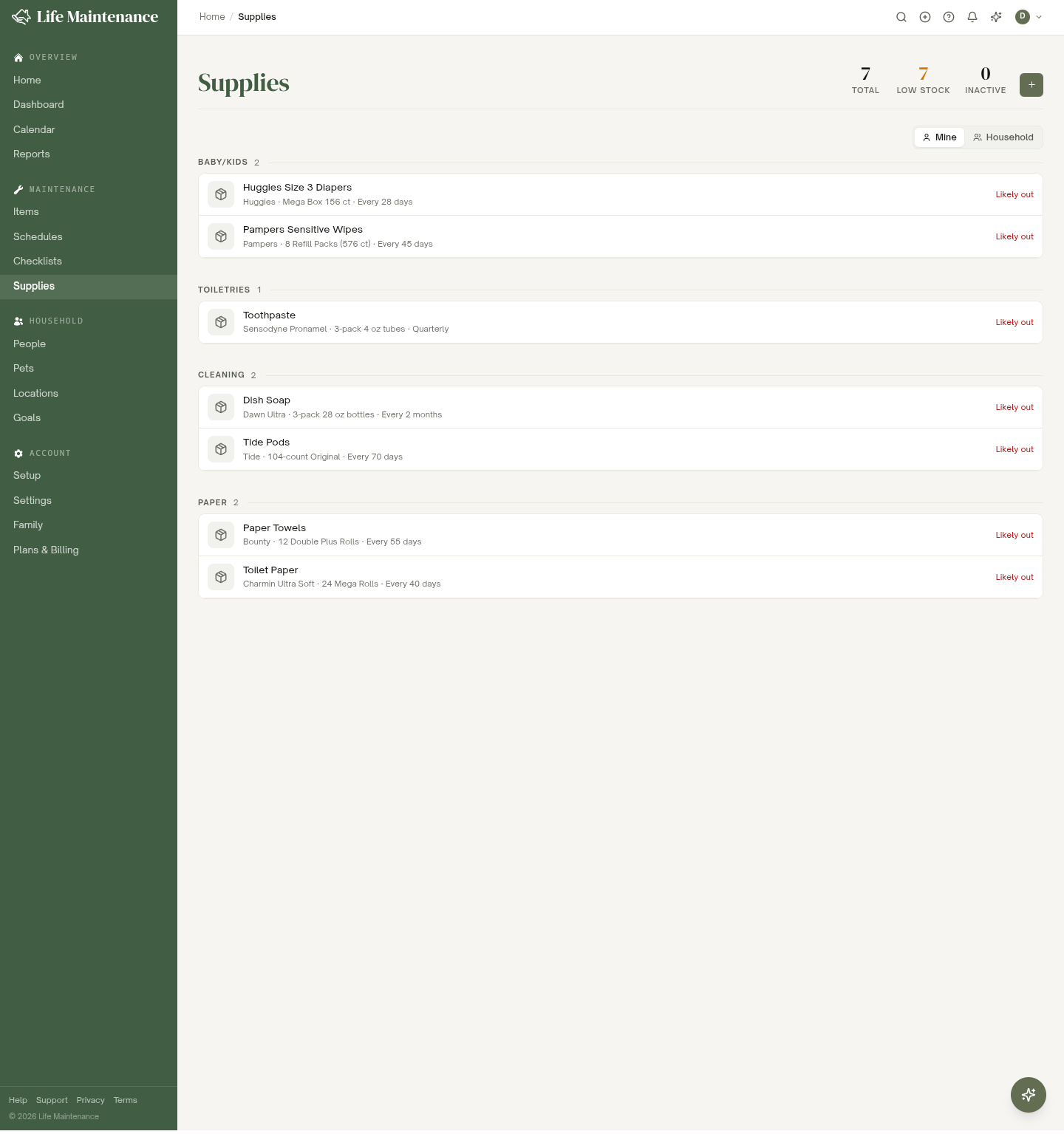
The Supplies page at a glance
Active supplies are grouped by category, each with its own mini-header and count. Three stat pills sit up top:
- Total. How many active supplies you track.
- Low stock. How many are running low or projected to run out.
- Inactive. Supplies you have paused or retired.
On the Family plan, owners and admins get a Mine / Household toggle in the filter bar, to switch between just supplies I track and every supply in the household. See Items for the full explanation.
Linking to schedules
On a maintenance schedule's detail page, look for the Supplies consumed card. Linking a supply there ties the two together: when the task is done, you know exactly which supply it used, and how many per completion.
For example, your "Replace HVAC filter" schedule can link to the "16x25x1 filter" supply, so the two always travel together.
Product lookup
Paste a product URL from most major retailers and we extract the name, brand, category, pack size, and current price. You can override anything we got wrong. This saves you typing and keeps a link handy for reordering.
What the supply detail page shows
- Header with name, brand, and photo.
- Inventory. Stock on hand and your low threshold.
- Usage. Which schedules consume this supply.
- Cost log. What you have paid over time and where you bought it.
- Reorder. A button that opens your preferred listing so you can restock in a tap.
What counts as running low
A supply is running low when either signal fires: the count on hand is at or under the low threshold you set, or the forecast puts the stockout within that supply's reminder lead time. It is out when the count is a real zero, or the forecast date has arrived.
A supply nobody has counted yet is neither. An empty stock field means the question has not been answered, not that the shelf is bare, so it is left alone until you count it.
The same rule runs everywhere: the Supplies page, your Home page, Reports, the assistant, and the phone apps all agree on which supplies are low.
Onto the grocery list
A supply that is running low or out carries an Add to list button on the Supplies page, and every supply has one on its own page. One tap puts it on the household grocery list, with its size in the note underneath.
Once it is on the list the button reads On the list, so nobody adds it twice. If somebody had already typed the same name by hand, that counts too. On the grocery list, a line that came from a supply carries a Supply link back to it.
Feeding Home
Low supplies do not just sit on the Supplies page. They surface on your Home page in the Running low tile and in the Needs Attention panel, each linking straight to the supply so you can reorder before you run dry.
Family sharing
Supplies are family-shared by default. Anyone can update a supply, and the Cost log records who paid for what, useful for shared-household accounting.
What to read next
- Schedules and reminders for linking supplies to tasks.
- Adding and managing items for the items those supplies serve.
- Costs and spending for tracking what you spend overall.