
Schedules and reminders
A schedule is just a maintenance task that recurs. Change the air filter every three months. Wash the car every other Saturday. Vet visit once a year. Schedules are the engine of Life Maintenance.
The anatomy of a schedule
Every schedule has three things:
- A task. What to do. ("Replace HVAC air filter.")
- An item. What you are doing it to. ("Main floor HVAC.")
- A recurrence pattern. How often. ("Every 90 days.")
When you create an item, the app suggests schedules for you. You can also add a one-off schedule from scratch: click the + in the top bar and pick Schedule, or use the + on the Schedules page.
Setting up schedules for a new item
Every time you save a new item, the app takes you to Set up schedules. This is where you decide which of the recommended maintenance tasks to track.
The screen shows a flat list of tasks sorted by priority (High, then Medium, then Low), with each priority tier under its own heading. Within each tier, more frequent tasks come first.
For each task card you have three choices in the Who does it? control:
- Skip: you do not want to track this one at all.
- DIY: you will do this work yourself.
- Pro: a service provider will handle it.
Every card must have a choice before you can click Save schedules. If you try to submit with undecided cards, the form highlights them and scrolls to the first one.
Tap Details & DIY info on any card to expand it. You will see:
- What's involved: a plain-English explanation of why the task matters.
- Difficulty, Typical time, and DIY popularity: shown when available. Any field that has no data is hidden.
- Est. cost: a typical cost range. A $0 task shows as "Free." A task with no cost data hides the chip entirely.
- Cost covers: a short note on what the cost includes (materials, service fee) and whether it is one-time or each time.
- If you DIY it: numbered steps for doing the work yourself.
Vehicle tasks that have a mileage interval (for example, "every 5,000 miles") show a mileage chip alongside the time cadence.
If you come back to Set up schedules on an item you already configured, already-tracked tasks appear as Active and show your saved cadence, not the catalog default.
Tip. You can come back and adjust your choices at any time. Open an item and use the Set up schedules button (or the Add / Edit link in the schedules section) to revisit.
Recurrence patterns
We support most of what real life throws at you:
- Every N days, weeks, months, or years. "Every 90 days."
- Mileage-based. For cars. "Every 5,000 miles."
- One-time. No recurrence. Useful for warranty deadlines.
You set the pattern when you create the schedule. You can also change the cadence later from the schedule's detail page.
Where to find your schedules
| Page | What it's good for | | --- | --- | | Schedules | The master list. Overdue first, then upcoming grouped by day. | | Calendar | See everything laid out on a real calendar. | | Home | This week and overdue, surfaced for you. | | Item detail page | Just the schedules for one item. |
The Schedules page opens with Overdue tasks first, then Upcoming grouped by day. A row of window filters (7d / 14d / 30d / 60d / All) narrows the upcoming list, and a Category filter (a multi-select) limits it to the areas you care about, like home, vehicle, or pets. Overdue tasks stay visible no matter which window you pick. Stat pills across the top count Overdue, Today, and the Next 30 days.
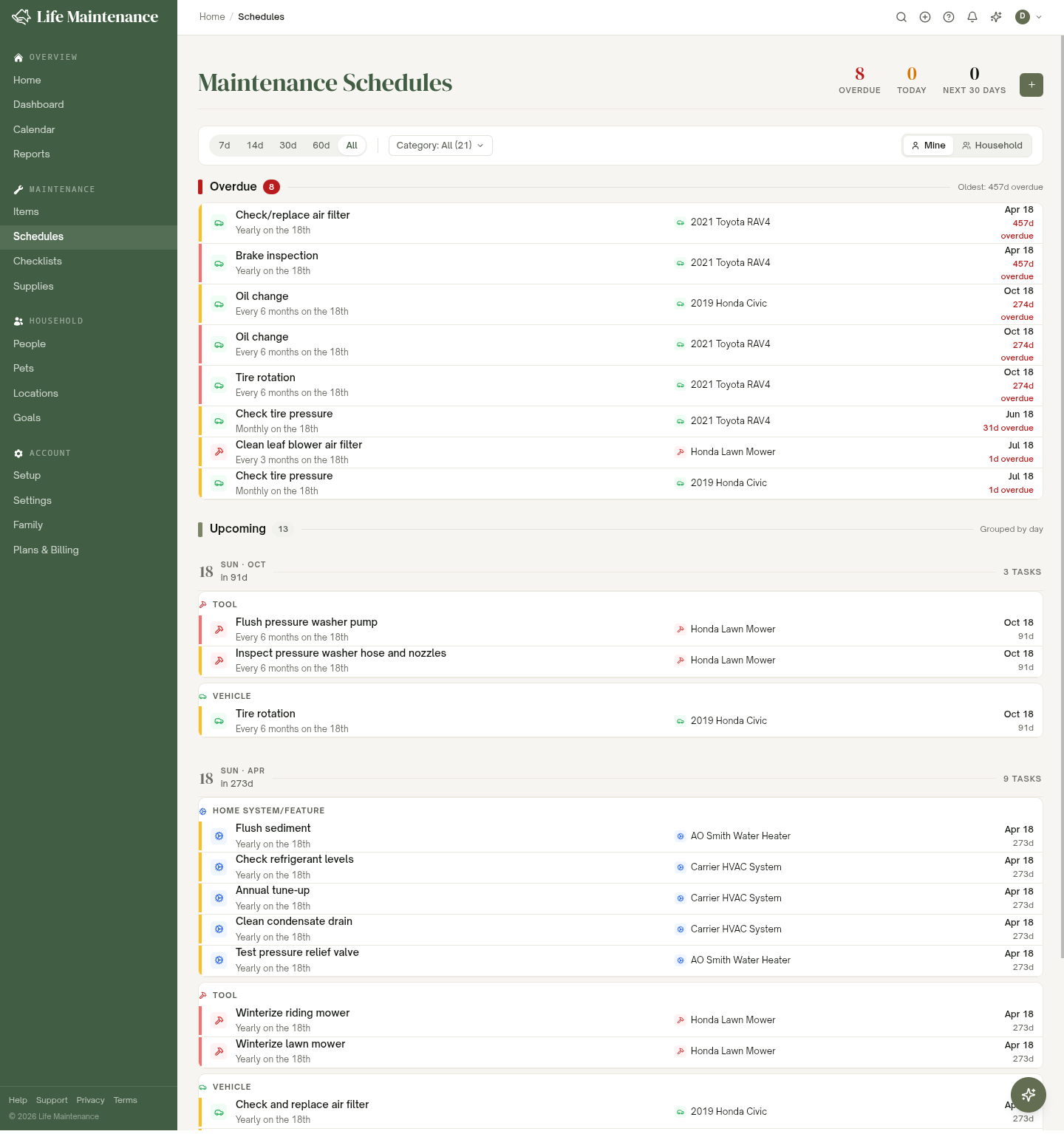
On the Family plan, owners and admins also get a Mine / Household toggle in the filter bar, to switch between just my assigned schedules and every schedule in the household. See Items for the full explanation.
What you see on a schedule record
Open any schedule and you will find an About this task section beneath the schedule details. It shows:
- A description of the task.
- Why it matters: the impact of skipping this task over time.
- How to do it yourself: numbered step-by-step instructions drawn from the catalog. Generic items that do not match a specific product still show DIY guidance where available.
- Estimated cost: the same cost range shown during setup, with a note on what the cost covers.
The "How to do it yourself" section only appears when step-by-step instructions are available in the catalog for that task type.
Marking a schedule done
When you actually do the maintenance, open the schedule and tap Mark Complete. The app will:
- Record the completion date (today by default).
- Automatically calculate the next due date based on the recurrence.
- Update the item's last-serviced date when the schedule is tied to an item.
If you did it earlier and forgot to log it, just pick the real date in the Date completed field before saving. If that date falls between two scheduled dates, the app asks which occurrence you meant to complete so the next-due date lands where you expect.
On the Family plan, marking done is limited to the item's owner (the person who added it). On a shared schedule you do not own you will see every detail, but the Mark Complete action will not appear; ask the owner, or have them transfer the item to you. See The Family plan.
Changing a due date
Sometimes you cannot do a thing on the day it is due. Open the schedule and choose Change Due Date to move the next occurrence to a new date. The recurrence pattern still applies after the new date.
If you want to permanently change the cadence (you decided every 60 days is enough, not every 30), edit the recurrence on the detail page directly.
Cross-item groups
Some tasks span multiple items. "Check smoke detectors" is one job, but you have eight smoke detectors. "Quarterly deep clean" hits the fridge, the oven, and the microwave on the same day.
Cross-item groups let you bundle related schedules together. You manage grouping from the group editor on a schedule's detail page: join an existing group or create a new one.
When you choose Complete Group, every schedule inside it marks done at once, and Reschedule Group moves them together. The Calendar shows a group as a single chip instead of cluttering your day with eight identical-looking entries.
Getting reminders
Reminders are how the app actually nudges you. You can pick how you want to hear from us in Settings → Notifications:
- Email. Daily digest or per-task. From
noreply@lifemaintenance.io. - Push. Through the mobile app.
- SMS. US numbers only. For urgent reminders.
- In-app. The bell icon in the top bar.
By default we send a reminder around the time a task is due. Turn any channel on or off in Notifications.
Linking to Google Calendar
If you live in Google Calendar, you can sync your maintenance schedule there. See Google Calendar sync for setup. Google sync is one-way, from Life Maintenance into Google, and you can also subscribe from Apple Calendar or Outlook using an .ics feed.
Pausing schedules
Going on a long trip? Boat in winter storage? Open the schedule, use Pause from the overflow menu, and it drops off your list until you resume it. Paused schedules show a "Paused" chip so you always know what is on hold.
What to read next
- Calendar view for the visual layout.
- Notifications to set up reminders the way you want.
- Google Calendar sync to mirror schedules into Google.