People
"People" are humans you take care of. Your kids, your spouse, your aging parents, yourself. Each person can have their own appointments, medications, routines, and schedules, separate from the rest of the household.
People vs. Family members
This is the most common source of confusion, so let's clear it up.
- A person is a record in Life Maintenance. They do not need an account. You manage them.
- A family member is a person who also has their own Life Maintenance login and shares your household.
Every family member is a person. But not every person is a family member. You can have a record for your toddler without giving the toddler an iPad and a Life Maintenance account.
Why use people records
- Kids with sports practice, music lessons, doctor appointments.
- Aging parents whose medications and appointments you coordinate.
- A spouse who does not want to use the app but whose schedule you track.
- Yourself as a way to separate "Olivia's tasks" from "household tasks."
- Caregivers, contractors, and helpers whose contact info and routines you reference.
Adding a person
- Open the People page from the left sidebar.
- Click the + button (or the + in the top bar and pick Person).
- Fill in their name and, optionally, their relationship to you (spouse, child, parent, friend, contractor).
- Save.
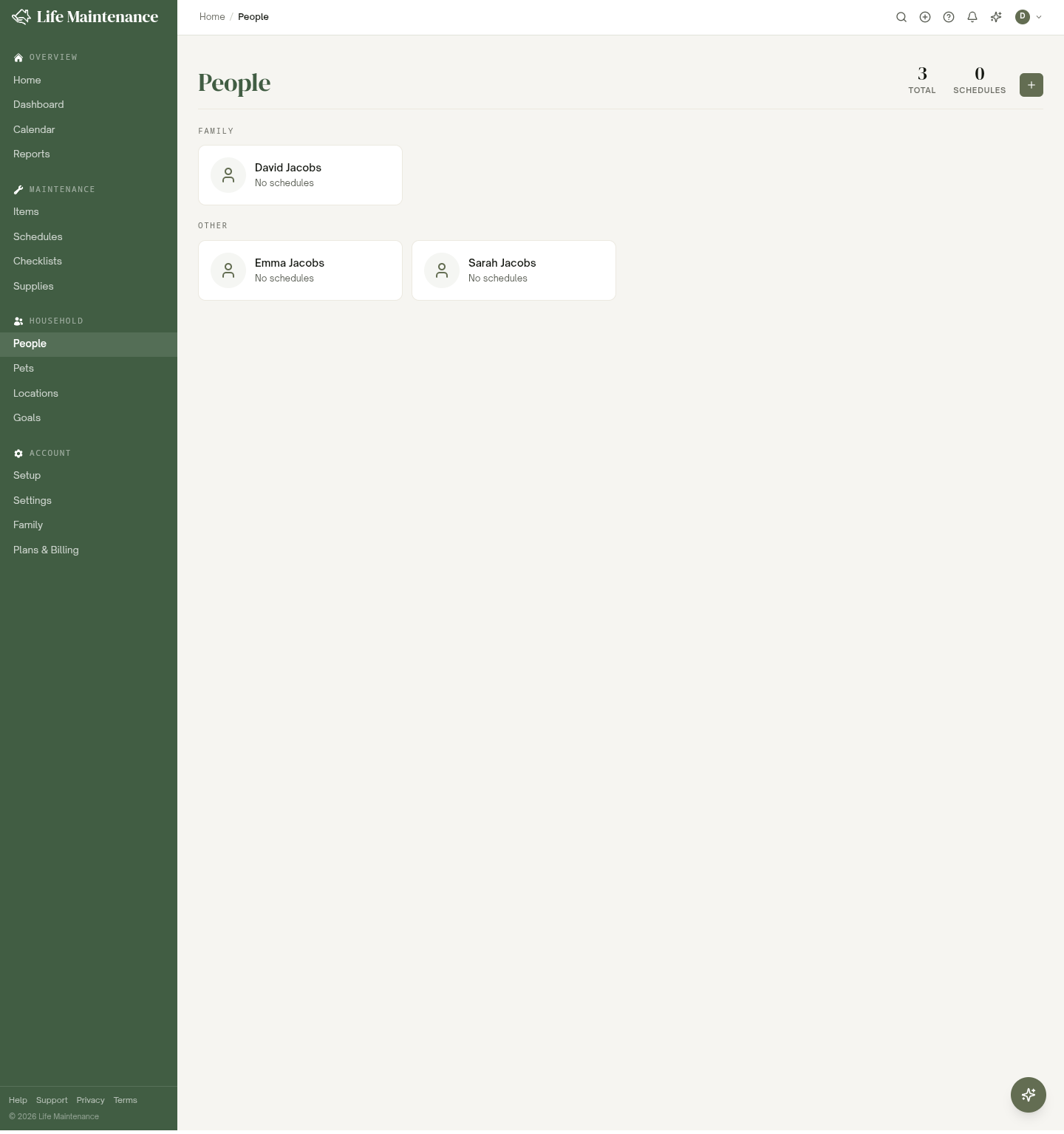
The People page groups everyone into Family and Other, so household members sit at the top and the contacts you just reference stay below.
A Review Schedules screen appears next with a few basic reminders you can keep or skip. The suggestions are tailored to the person: we use their date of birth and sex at birth so the checkups and screenings offered match their age and apply only where relevant, and age- or sex-specific reminders show only for the people they actually fit. People use a simple Track / Not now choice rather than the DIY or Pro options that items have.
What you can track per person
- Details and address. Name, date of birth, sex at birth, and where they live.
- Medical. Allergies and blood type, plus any prescription items you link to them.
- Education. School, grade, and teacher for the kids.
- Sizes. Clothing and shoe sizes, each with the date it was last set. Save a size again to record that it still fits.
- Activities. Soccer, piano, scouts: the coach, the season, where it happens, and the team's linked calendar.
- The kid card. Choose Print kid card from the menu on a person's page to get everything above, the emergency contacts, and the medical details on one printed page, with a switch to leave the medical details off. The same card is what a caregiver link shows.
- Emergency contacts. Who to call, kept right on the person.
- Schedules. Checkups, physicals, vaccinations, and other recurring routines.
- Relationships. "Olivia is my daughter," "Marcus is my husband." Reciprocal by default.
Family relationships
On any person's detail page, there is a Relationships card. Click Add relationship to define how two people are related. The relationship is reciprocal, so we maintain both sides automatically. If you set "Olivia is my daughter," her record gets "you are Olivia's parent" without a second step. Deleting a relationship removes both sides at once.
This becomes useful for family trees, shared events, and "everyone's birthday this month" reports.
Promoting a person to a family member
When your toddler turns thirteen and wants an account, open their person record and use Invite to family (available on the Family plan). We send the invitation email; once they accept, the same record becomes a full family member with their own login.
Their history (everything you tracked when they were just a person record) carries over.
Archiving and removing
If someone moves away, passes away, or you no longer need their record:
- Archive keeps them in your account but removes them from active lists.
- Delete wipes the record permanently. We will warn you if there are linked schedules or events.
Family-member records cannot be deleted while their account is still active.
What to read next
- The Family plan for sharing a household.
- Schedules and reminders for how routines work.
- Pets if you also want to track non-human members of the household.