Welcome to Life Maintenance
Life Maintenance helps you keep track of everything in your life that needs caring for. Your home, your car, your appliances, your pets, your kids, even the houseplants. This guide will show you around in about five minutes.
What Life Maintenance does, in one sentence
You tell us what you own. We tell you when to clean it, replace something, check on it, or take it in. That is the whole product.
You can use it for things you already know about (oil changes, smoke detector batteries), and for things you forgot you were supposed to do (washing the dryer vent, sealing your driveway, descaling the coffee maker).
Signing up
Go to lifemaintenance.io and click Sign up. You can sign up with an email and password, with your Google account, or with Apple. We will send you to your Home page right after.
Life Maintenance has three plans:
- Free is permanent. You can track up to 10 items and try most features.
- Pro ($7.99/mo or $79.99/yr) is for one person who wants no limits, plus reports, kiosk mode, and the AI assistant.
- Family ($12.99/mo or $129.99/yr) shares a household across up to six people, so everyone can pitch in with their own login and notifications.
You can change plans any time from Settings.
Your Home page
The first thing you see when you log in is the Home page. Think of it as the morning paper for your house.
Across the top are four quick counts, so you can see where things stand at a glance:
- Overdue. Tasks that are past their due date.
- Due this week. What is coming up in the next seven days.
- Needs setup. Items you have added that do not have any schedules yet.
- Running low. Supplies that are close to running out.
Below the counts, Home lists your overdue and upcoming tasks. A Needs Attention panel on the side gathers the loose ends worth a look: items without schedules, vehicles whose mileage needs updating, documents or licenses expiring soon, and supplies likely to be out.
If the page is mostly empty, that is normal. You have not added anything yet.
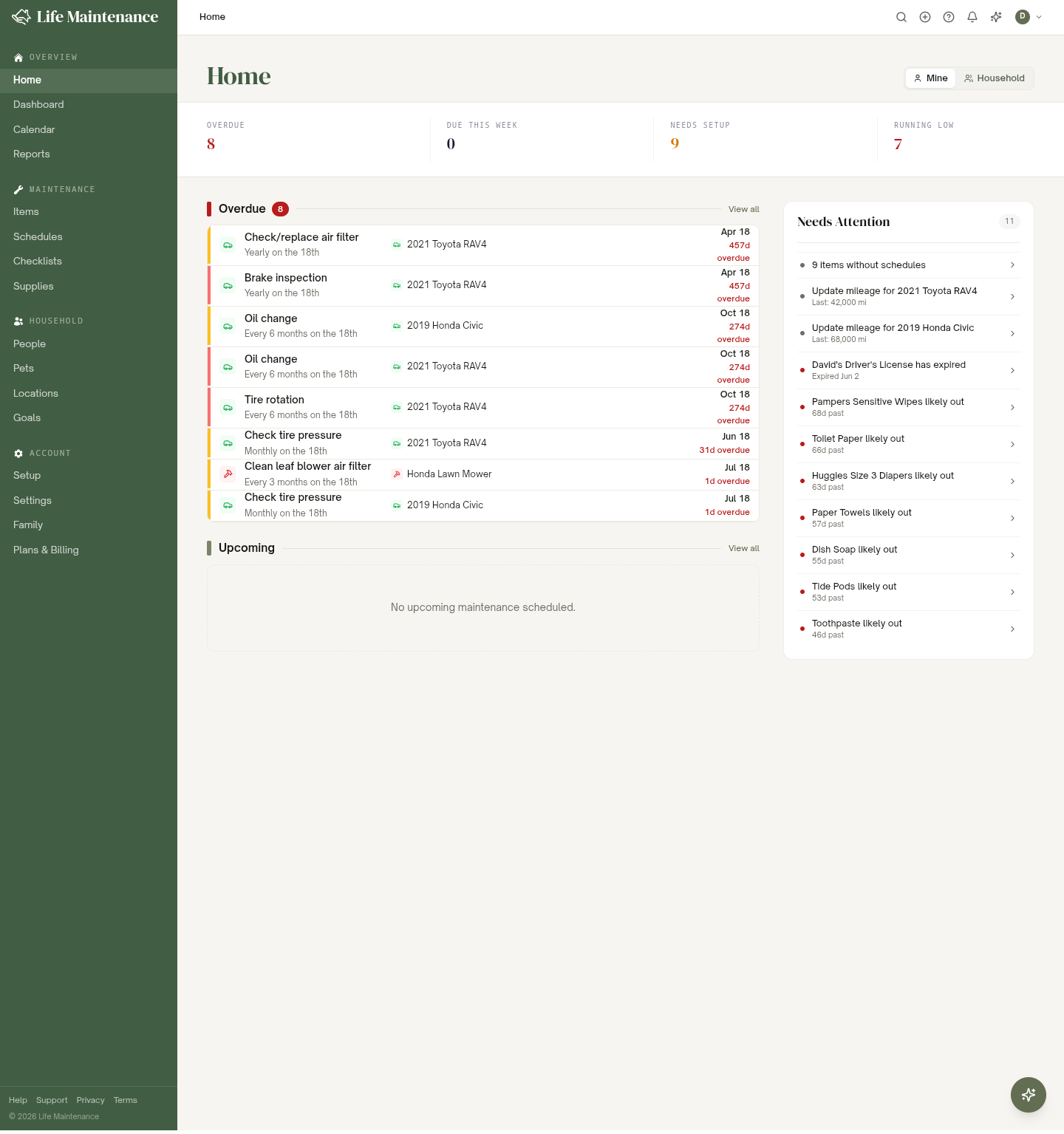
If you are on a household, a Mine / Household toggle lets you switch between just your things and everything the family shares.
Adding your first item
The fastest way to feel the product working is to add one thing. Let's say you have a refrigerator.
- Click the + button at the top of any page and pick Item.
- Choose the Appliance category, then pick Refrigerator from the list.
- Give it a name (most people just write "Fridge"). The brand, model, and purchase date are optional but helpful later.
- Click Save.
The next screen is the most useful part of the app: Review Schedules. We have already pulled together a list of recommended maintenance tasks for a refrigerator, things like cleaning the condenser coils, replacing the water filter, and checking the door seals. New items start tracking their recommended schedules for you automatically, so you are set up from the moment you save. This screen is where you fine-tune or opt out.
For each task, pick how it gets handled:
- DIY: you will do it yourself.
- Pro: a service provider will handle it.
- Skip: you do not want to track this one.
When you are done, save the screen. That is it. You now have reminders set up.
Tip. We will not pester you about every single task on day one. Each task gets its own next-due date so reminders are spaced out across the year. You can expand any card to see why the task matters, step-by-step DIY instructions, and an estimated cost range.
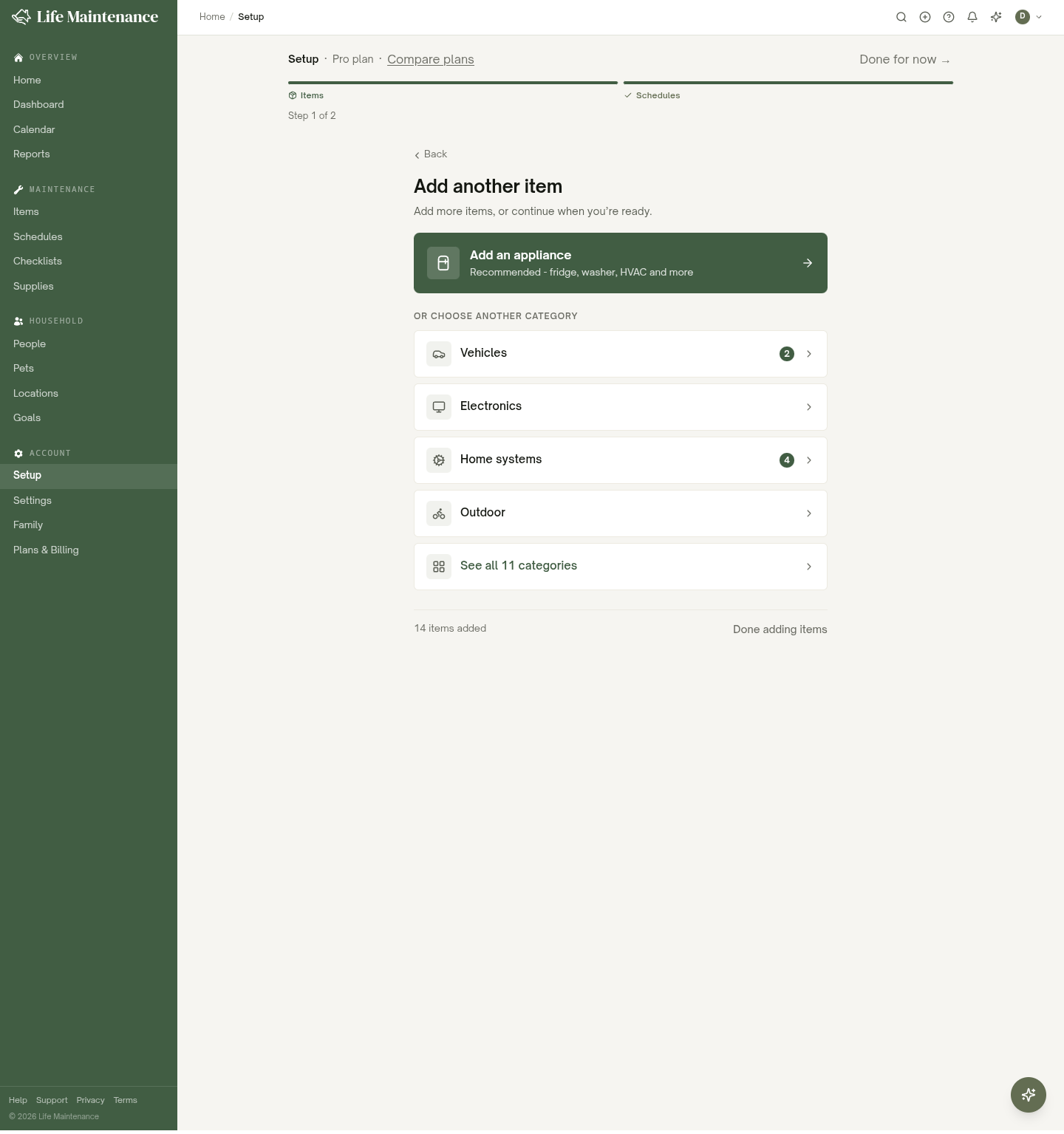
If you would rather add a lot at once, the Setup wizard walks you through your home, vehicles, people, pets, and locations one section at a time.
Where things live
Once you have a few things in the app, you will spend most of your time in these five places:
| Page | What it shows | | --- | --- | | Home | Today's view. Due now, coming up, recent activity. | | Items | Every item you track. Filterable by category. | | Schedules | Every maintenance task. Filterable by item or status. | | Calendar | Day, week, month, and agenda views of what is scheduled. | | Reports | Summaries: spending, activity, what is overdue. |
The sidebar on the left of every page shows the full menu. On phones, tap the ☰ icon at the top left.
Marking things done
When you do a task, open the schedule and tap Mark complete. We record the date and automatically schedule the next occurrence.
If you forgot to mark something done last month, no problem. Set the completion date to when you actually did it, and the next due date follows from there.
What to do next
- Add a few more items. The app gets more useful the more it knows about. Cars, lawn equipment, HVAC, water heater, your kids' school routines.
- Take a tour of your items to learn about categories, sub-items, and locations.
- Set up a recurring checklist for a daily or weekly routine (morning chores, weekend cleaning).
- If you have kids, the points and rewards system turns checking off chores into earned points they can redeem against goals you set ("100 points for movie night").
- If you have family at home, set up the Family plan so everyone shares the load.
- If you have an old iPad lying around, turn it into a family dashboard. It is one of the most-loved features.
You can always come back to this Help Center from the sidebar at the bottom of any page.