
Reports
Reports are the "step back and see the big picture" view. Twelve built-in reports cover your tasks, items, money, supplies, and family activity. No setup needed. Reports are part of the Pro and Family plans.
The snapshot at the top
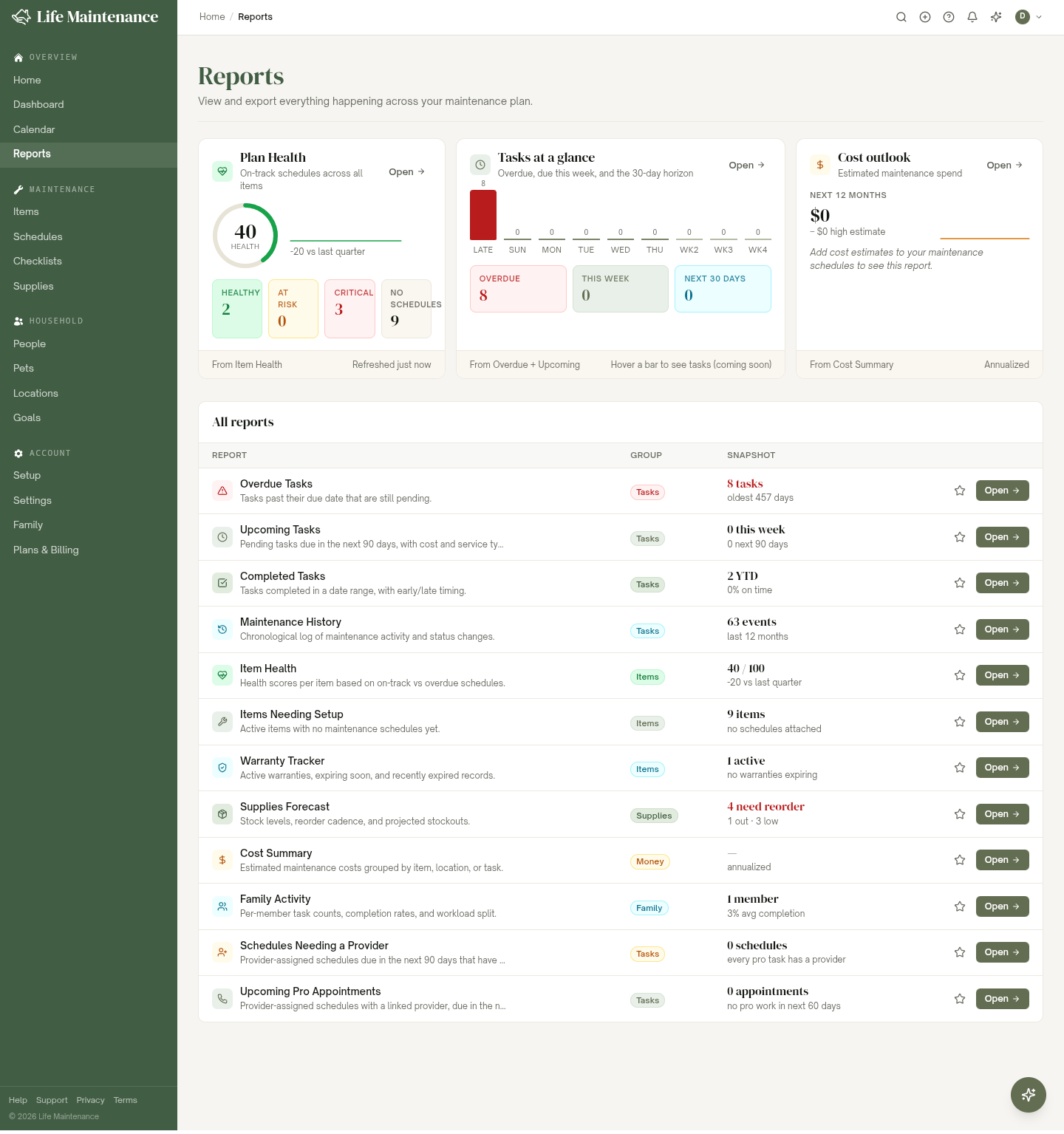
Open the Reports page and three snapshot panels sit at the top, so the headline numbers are the first thing you see:
- Plan Health. How on-track your items are, healthy versus at-risk versus critical.
- Tasks at a glance. What is overdue, due this week, and coming over the next 30 days.
- Cost outlook. Your estimated maintenance spend for the next 12 months.
Each panel has an Open link that jumps straight to the full report behind it.
All reports
Below the snapshot is the All reports table. Here is what each one is for:
| Report | What it shows | | --- | --- | | Overdue Tasks | Tasks past their due date that are still pending. | | Upcoming Tasks | Pending tasks due in the next 90 days, with cost and service type. | | Completed Tasks | Tasks completed in a date range, with early and late timing. | | Maintenance History | A chronological log of maintenance activity and status changes. | | Schedules Needing a Provider | Provider-assigned schedules due soon with no service provider linked yet. | | Upcoming Pro Appointments | Provider-assigned schedules that have a provider, due in the next 60 days. | | Item Health | Health scores per item, based on on-track versus overdue schedules. | | Items Needing Setup | Active items that do not have any maintenance schedules yet. | | Warranty Tracker | Active warranties, ones expiring soon, and recently expired records. | | Supplies Forecast | Stock levels, reorder cadence, and projected stockouts. | | Cost Summary | Estimated maintenance costs, grouped by item, location, or task. | | Family Activity | Per-member task counts and completion rates. Family plan only. |
Opening a report
Click any report to open its detail view. From there you can:
- Filter the results. Most reports have a date range or grouping control at the top.
- Export CSV to pull the data into a spreadsheet.
- Print / PDF using your browser's print dialog, which includes "Save as PDF" as a destination. Handy for an insurance adjuster or a contractor.
Pinning a report
Click the star next to any report to pin it to a Pinned section at the top of the page. Useful if you check the same one every week. Pins are saved per device, so they follow the browser you set them in.
What you see
Reports only include what you can already see. On the Family plan they follow the same Mine / Household scope as the rest of the app, so you can look at just your own activity or the whole household. Personal items stay on your own view and do not appear on family-shared reports.
What to read next
- Costs and spending for how the cost estimates behind the Cost outlook and Cost Summary are built.
- The Family plan for the Family Activity report and shared scope.
- Schedules and reminders for the data that feeds the task reports.