
Adding and managing items
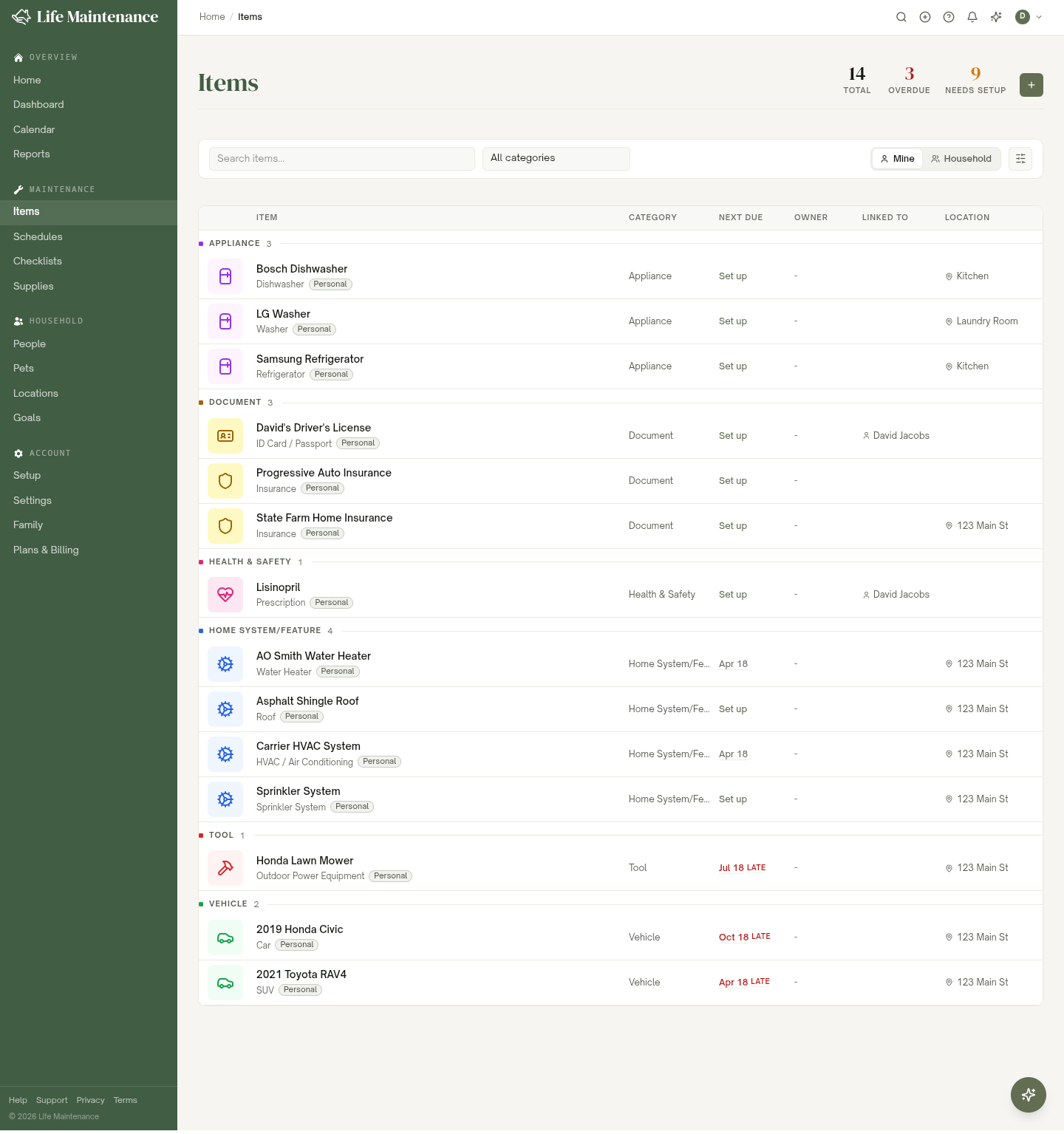
An "item" in Life Maintenance is anything you take care of. Your car. The fridge. The dog. Your daughter's violin. This page shows you how to add things and keep them organized.
What counts as an item
Almost anything. We have built-in categories for:
- Vehicles. Cars, trucks, motorcycles, boats, RVs, tractors, ATVs, e-bikes, scooters, even your kids' bikes.
- Home. The house itself, plus the roof, HVAC, water heater, septic, well, gutters, and so on.
- Appliances. Fridge, dishwasher, washer, dryer, range, microwave, water softener.
- Home system features. Pools, spas, fireplaces, sprinkler systems, alarm, smart-home gear.
- Electronics. Computers, printers, cameras, networking gear.
- Outdoor and tools. Mower, leaf blower, snow blower, generator, grill.
- Musical instruments. Pianos, guitars, brass, strings.
- Garden. Plants, trees, and beds. Pick a plant and we can help identify it.
- Documents and subscriptions. Warranties, licenses, and memberships you want to renew on time.
- Pets. Dogs, cats, birds, fish, reptiles.
- People. Family members, kids, anyone whose routines you want to track.
- Prescriptions. Medication refill reminders.
If your thing does not fit a built-in category, pick Other and tell us what it is. We will still suggest a basic schedule.
Adding an item
There are two ways to start:
- Click the + button in the top bar, then pick Item.
- From the Items page, click the + button.
The form is short. Pick a category, pick a subtype, give it a name. Brand and model are optional, but if you fill them in we can match better maintenance tasks and even pull in a product photo from our catalog.
When you save, the app sends you straight to Review Schedules. That is where the magic happens, the app suggests every maintenance task it knows about for that kind of item, with sensible default schedules.
New items automatically start tracking their recommended schedules, so you are covered the moment you save. The Review Schedules screen is where you fine-tune it, setting each task to DIY, Pro, or Skip.
You stay in control. Every suggested task can be turned off. We never keep a schedule you chose to skip.
Sub-items
Some things are made of other things. A house has a roof, a furnace, a water heater, gutters. A car has a battery, tires, a key fob. Life Maintenance handles this with sub-items: a component tracked as its own item, linked to a parent.
Setting up a home is the easiest way to create them. As you describe the house, you can add the systems inside it (HVAC, water heater, roof) and each becomes its own item, usually in the Home System/Feature category, with its own maintenance schedule.
Sub-items are real items. Each one gets its own schedules, dates, photos, and notes, and it inherits the parent's location so you do not have to set that twice.
Locations
Locations help you answer "where is this thing." Useful if you have:
- A rental property or second home.
- A workshop or storage unit.
- Multiple cars at different addresses.
- A boat at a marina.
Locations also support sub-locations (rooms, basements, garages, sheds). Open any location to see what items live there.
You can link an item to a location from the item's detail page, or set it during the create flow.
Mine vs. Household view
On the Family plan, the Items page has a Mine / Household toggle in the filter bar. Owners and admins flip it to switch between just my items and every item in the household. Members do not get the toggle, they always see the Household (everything the family shares); items other people marked personal still stay hidden.
The same toggle exists on Schedules, Pets, Locations, Supplies, Checklists, and your Home dashboard, so you can move through the app at one scope. Your choice carries across the whole app, it is not remembered per page.
Sensitive items
Some things you track are private. Passports, keys, alarm codes, safe combinations. The app has a Sensitive toggle that:
- Masks the item name across the app as
***. - Hides any notes, photos, and details from family members on shared plans.
- Even hides them from the breadcrumbs and search results so nothing accidentally peeks through.
Only the person who created a sensitive item can see it. Family-plan owners cannot override this.
To mark something sensitive, open it and look in the Details card on the right.
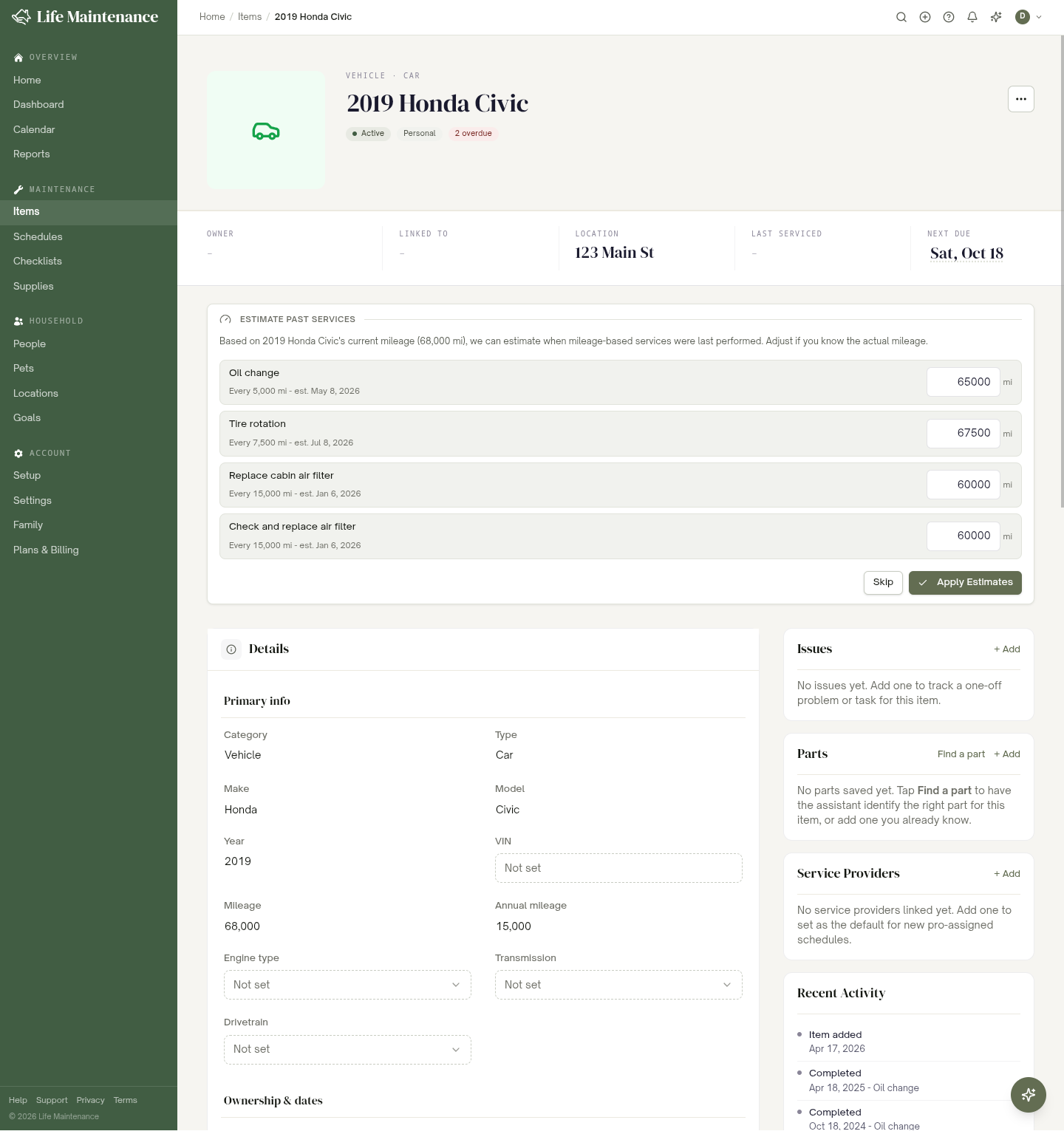
What an item's detail page shows
Open any item and you will find everything about it in one place:
- Details. The item's primary info (name, brand, model, serial), plus ownership and dates. On the Family plan, this is also where the Sensitive and Assigned to settings live.
- Schedules. Every maintenance task for the item, grouped by overdue, upcoming, and later.
- Issues. One-off problems or to-dos (more on these below).
- Parts. Replacement parts the AI assistant has identified for the item (on appliances, vehicles, and home gear).
- Service Providers. Anyone you have linked to do the work.
- Recent Activity. A running log of what has happened.
For vehicles and other mileage-tracked items, there is also an Estimate Past Services helper that fills in a plausible service history from the mileage you enter.
Editing items
The detail page for any item supports inline edit. Click any field (the name, the brand, the location, the notes) and it turns into an input. Press Enter to save, Escape to cancel.
If you want to change something more substantial, like splitting one item into two or moving it under a different parent, the More menu at the top right has options for that.
Reporting issues on an item
Sometimes something is just wrong with a thing you track, and it is not a recurring chore. The garbage disposal won't turn on. The car is making a noise. You need to order a replacement part. That is what issues are for: one-off problems or to-dos attached to a specific item, separate from your recurring schedules.
Open any item and find the Issues card. Click Add and give it:
- A summary (required). "Disposal won't turn on."
- Notes (optional). What you have tried, part numbers, anything useful.
- A photo (optional). One image, handy for showing the problem.
Each issue stays Open until someone closes it, and shows who reported it and when (plus the date it was closed).
On the Family plan, who can do what is scoped:
- Anyone who can see the item can add an issue. If your spouse notices the dishwasher leaking, they can log it on the shared appliance.
- The item's owner or the person who reported an issue can edit or delete it.
- Only the item's owner can Close or Reopen an issue.
When someone adds an issue to an item you own, you get a "New item issue" notification; when the owner closes an issue you reported, you get an "Issue closed" one. Tune these under Notifications.
Open issues are easy to find:
- On the Items page, an item with unresolved issues shows an amber open-issues pill, and the Issues stat at the top counts how many items need attention. Tap it (or visit
/items?openIssues=1) to filter to just those. - Your Home dashboard lists "N open issues on your items" in Needs Attention.
Archiving and deleting
Sold the car? Moved out of the rental?
- Archive keeps the item in your account but hides it from regular views. You can dig it back up later. Useful for tax records and warranty claims.
- Delete wipes it completely. Schedules, photos, notes, everything.
Both options live in the More menu on the item detail page.
Bulk adding
If you are starting fresh and want to add ten items at once, the Import page accepts a simple CSV. You can also walk through our Setup wizard, which asks about your home, cars, and pets in a guided flow.
What to read next
- Schedules and reminders explains how recurring tasks actually work.
- The Family plan covers sharing items with people you live with.
- Locations and rooms goes deeper on organizing by place.