Google Calendar sync
If Google Calendar is your daily driver, you can mirror your Life Maintenance schedules into it so they sit next to your meetings, school pickups, and dinner plans. No more checking two places.
How the sync works
The sync is one-way, from Life Maintenance to Google. We create a dedicated calendar in your Google account named "Life Maintenance: Your Name" and push your schedules and events into it. We never read your existing Google events or touch anything we did not create.
When you complete or reschedule something in Life Maintenance, the matching Google event updates to match. If you change a Google event by hand, we do not see it, so treat Life Maintenance as the source of truth.
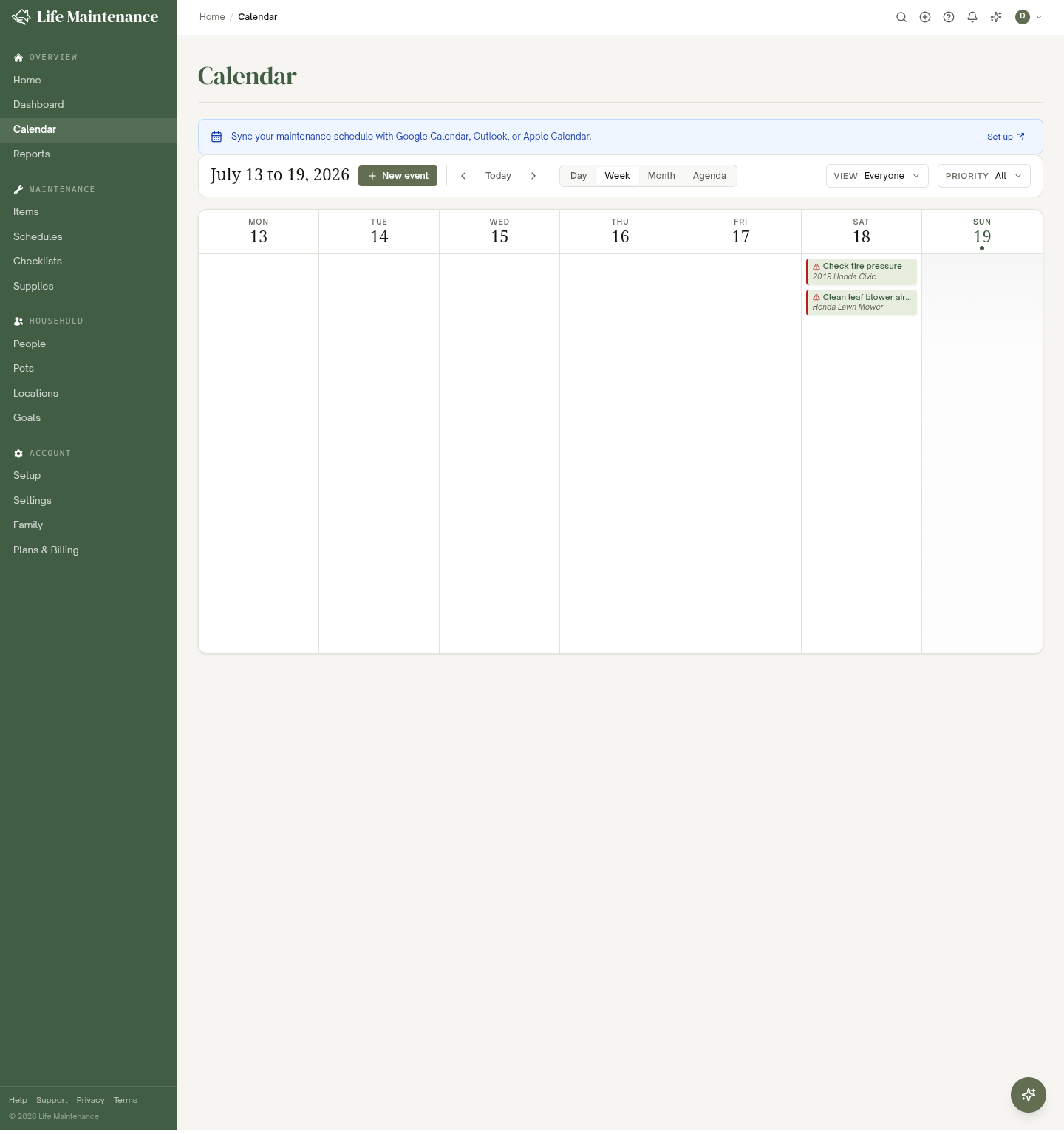
What gets synced
- Maintenance schedules with upcoming or overdue dates.
- Calendar events you add in Life Maintenance.
Because everything lands in its own calendar, it stays cleanly separate from your work and personal events.
Setting it up
- Go to Settings → Calendar sync. You can also reach it from the banner on the Calendar page.
- Find the Google Calendar row and click Connect.
- Sign in with the Google account you want to mirror into and approve the permission prompt.
- That is it. We create the dedicated "Life Maintenance" calendar for you and the first sync runs automatically. Expect events to appear in Google within a minute.
Why a dedicated calendar
Maintenance is high-frequency, and Google Calendar lets you toggle calendars on and off. Keeping it in its own calendar means:
- You can color it whatever you want.
- You can hide it during the workday.
- You can share it with your spouse through Google's own calendar sharing.
- You can subscribe to it on your phone, watch, or kitchen tablet.
Apple Calendar and Outlook
Google is not the only option. On the same Settings → Calendar sync page, expand Apple Calendar / Outlook (.ics subscription) and enable it. We give you a private feed URL you can subscribe to in Apple Calendar, Outlook, or any calendar app that reads iCalendar feeds. If you ever think the URL leaked, regenerate it from the same spot.
Family plans
On the Family plan, each member connects their own Google account, so everyone mirrors their own schedules into their own calendar. Family owners also get an option to share the household calendar with the rest of the family.
Two-way sync
We get asked about two-way sync (changes in Google flowing back into Life Maintenance) often. It is on the roadmap but tricky to do well. For now, Life Maintenance is the source of truth and Google is a read-only mirror.
Disconnecting
Open Settings → Calendar sync, find Google Calendar, and click Disconnect. You choose what happens to the events we already created:
- Keep events. We stop syncing but leave the Life Maintenance calendar and its events in your Google account.
- Remove all events. We delete the Life Maintenance calendar and everything in it, for a clean break.
Troubleshooting
- Events not appearing. Make sure the Life Maintenance calendar is visible in Google Calendar. Many people accidentally hide it.
- Nothing syncing after connecting. Give it a minute for the first sync. If it is still empty, disconnect and reconnect.
- Old events linger after marking done. We update them within a minute. If they persist much longer, contact support.
What to read next
- Calendar view for the in-app calendar that drives the sync.
- Schedules and reminders for what gets synced.
- Notifications if you want reminders without the calendar mirror.