Checklists
Checklists are lists of tasks you work through together. Some build themselves from your maintenance schedules; others you make yourself for one-off or recurring jobs. Where schedules are one task that recurs, checklists are many tasks at once.
Three kinds of checklists
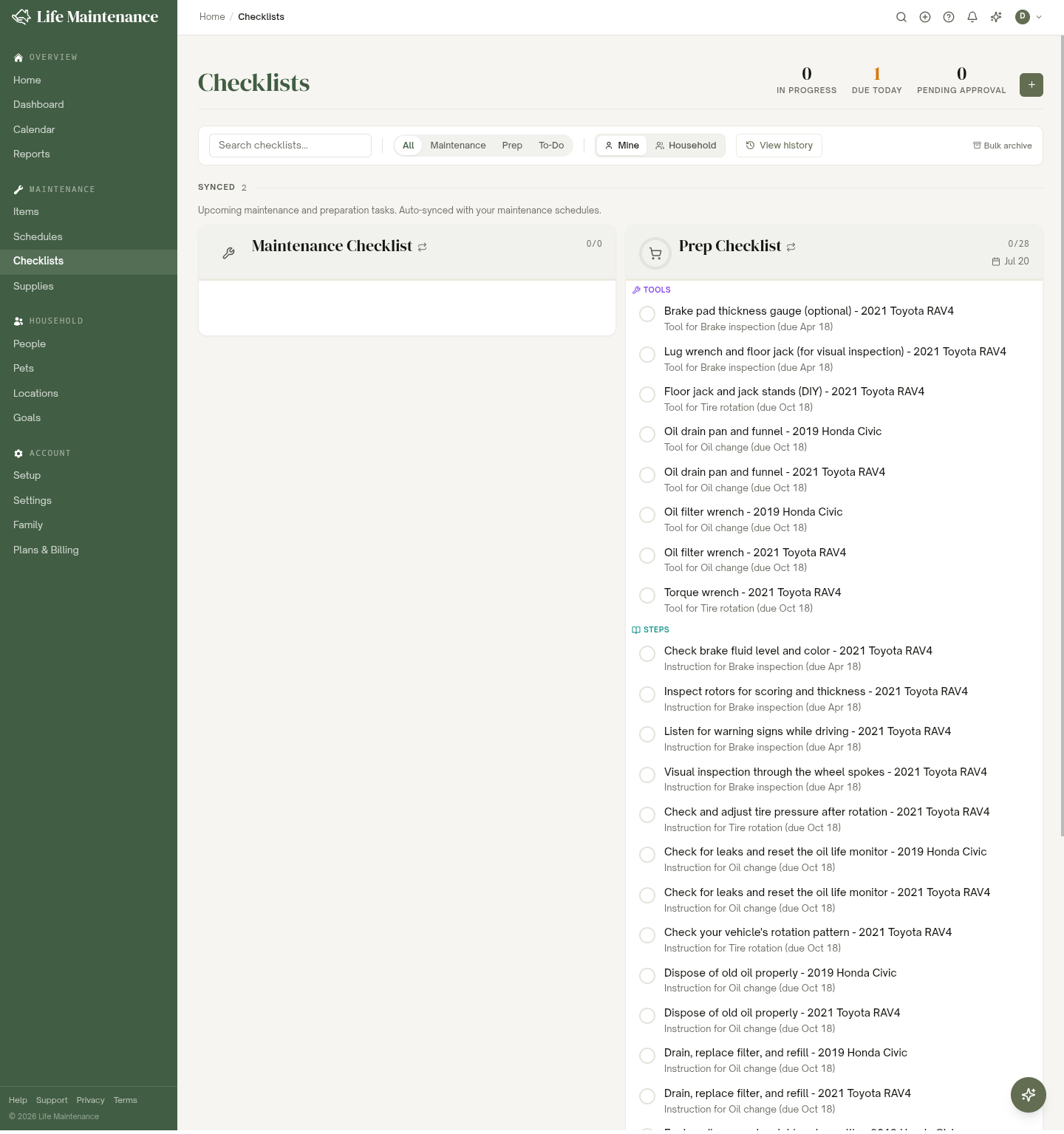
The Checklists page filters into All / Maintenance / Prep / To-Do:
- Maintenance Checklist. Auto-synced from your maintenance schedules. It gathers upcoming maintenance into one checklist so you can knock it out in a session. Read-only and always current.
- Prep Checklist. Also auto-synced. For each task it lists the Tools to have and the Steps to do, tied to the item and its due date, so you can prep before you start.
- To-Do. Your own custom lists, one-off or recurring. This is the kind you create by hand.
The synced Maintenance and Prep checklists sit pinned at the top under a Synced header. You do not build or edit them; they follow your schedules automatically, and each task links back to its schedule.
Picture routines for kids
A task can carry a picture. When a checklist's tasks have pictures, the wall tablet shows that checklist to the child as large tiles to tap, one per step, instead of text rows. The web page shows the same picture as a small badge next to each task.
To start one, choose New checklist and pick a routine at the top of the form: Morning, After school, or Bedtime, for ages 2 to 4, 5 to 8, or 9 to 12. The form fills in the steps with their pictures, sets it to repeat daily at a sensible time, and you assign it to the child and change anything you like. To add a picture to any task, use the picture button on the task's row; the same button is on the Tasks section of a checklist's page.
Streaks
Each person with a repeating checklist has a streak: the number of days in a row they finished every routine due that day. The flame next to the points on the wall tablet shows it, the tablet's overview shows one per person, and the person's page shows it with their best run. A missed day ends the run the next morning; a day with no routine due does not. Finishing counts as soon as the child ticks the last step, before a parent approves it, so the streak is theirs to keep.
The grocery list
The household shares one grocery list, at Grocery under Household. There is nothing to set up: open it and it is there. Anyone in the family can add a line and tick any line off, and everyone sees the same list.
Taking a line off is narrower, so nobody's request disappears without them knowing: you can remove what you added, and an owner or admin can remove anything. On a line you cannot remove, the remove button is not shown. Clear bought follows the same rule, so it tells you when it left someone else's line behind.
Type several things at once and they become separate lines: "milk, eggs and bread" is three. Anything already on the list is skipped rather than doubled, so it is safe to say milk twice. You can also tell the assistant: add milk and eggs to the list.
Shopping mode drops the ticked lines to the bottom, so what is still to find stays at the top of the screen while you are in the aisle. Afterwards, Clear bought takes the ticked lines off and leaves the rest.
The wall tablet shows the list in the sidebar, so anyone can tick things off in the kitchen. Adding and removing happen on the web or your phone.
The grocery list does not appear on the Checklists page. It is its own thing, with its own page.
The stats at the top
Three stat pills summarize your lists:
- In Progress. Checklists you have started but not finished.
- Due Today. What is on the docket right now.
- Pending Approval. Checklists waiting on a reviewer (a Family-plan workflow, below).
Making a custom to-do checklist
- From the Checklists page, click New checklist. It opens the checklist form as a To-Do.
- Give it a name and an optional due date.
- Add tasks by typing them in.
- Optionally link a person, pet, or location, set it to recur, and (on the Family plan) turn on points or require approval. Points and approval are independent options, so you can use either, both, or neither.
- Save.
Once saved, the checklist becomes an active occurrence that shows up on your Home page and Calendar until it is complete.
Recurring checklists
For things you do on a rhythm (weekly chores, quarterly deep clean), set the checklist to repeat. When the next due date comes around, we automatically create a fresh occurrence with the same tasks, reset to unchecked.
Past occurrences are kept in your history so you can look back at what got done.
Taking turns and up for grabs
A repeating checklist can be assigned three ways, under Each time it repeats on the form or the checklist's page:
- One person. The same person every time. This is the default.
- Take turns. Tick the people in order. Each time the checklist repeats, the next person in the list gets it, and the card says whose turn it is ("This time: Owen"). The wall tablet shows it only to that person that day.
- Up for grabs. Anyone in the household can do it. The card reads "Up for grabs" until someone ticks the first step; that person claims it, the card reads "Claimed by Ella", and the points and the streak go to them.
Owners and admins can always tick any checklist. A person's streak counts a turn or a claim the same as their own routine.
Sharing on Family
On the Family plan, anyone in the household can check off items. A Mine / Household toggle at the top lets owners and admins switch between "just my checklists" and "everyone's checklists." Non-admins always see Mine.
Points and rewards (Family plan)
Any checklist can award points toward Goals. Turn points on in the checklist form or on its detail page and set how much each task and each full completion is worth. Points are independent of approval, so how they credit depends on whether the checklist has approvers:
- No approvers. Points credit automatically the moment the assignee checks off the last task, so a simple chore list can reward on its own with no review step.
- With approvers. Points credit when the approver taps Approve, so a reviewer confirms the work first.
Either way the points land on the assignee and count toward whatever goal they are working on. See Points and rewards for the full picture.
Approval workflow
Approval is optional and separate from points. If you add approvers to a checklist, the workflow gains a review step. When the assignee checks off the last item, the checklist's status flips from In progress to Pending approval. The assignee's checkboxes lock, and the approver sees two actions:
- Approve. Closes the checklist. If the checklist is points-enabled, the button shows the reward (for example, Approve (+5 points)) so the approver sees it before tapping. The points credit on tap and feed Goals.
- Mark incomplete. Sends the checklist back as not-done. Confirms first, so a stray tap on a shared device does not undo someone's work.
Approvers can find their queue via the Pending Approval stat and the /checklists?filter=pending_approval view, or the amber badge on the kiosk top bar.
This pattern works great for kids' recurring chore lists. The kid checks the items off; the parent reviews and approves at the end of the day.
Reviewing past days (book view)
Recurring and synced checklists get a chevron + date navigator at the top: tap ← to walk back through roughly the last 90 days, → to walk forward. We call this the "book" view because each occurrence is like a page in a book.
Past days are read-only, so you see what got checked off and what didn't, but you can't change items retroactively. You can still Approve or Mark incomplete a past day's checklist if you didn't get to it then. If multiple days are pending, a small pill shows the count so you can jump to the oldest one.
History and archiving
Use View history in the filter bar to browse completed checklists over time. When the active list gets cluttered, select the ones you are done with and Bulk archive them in one pass. Archived checklists drop out of the active list but stay in View history, so their past completions are always browsable. Archiving never deletes anything.
When to use a checklist vs. a schedule
| Use a checklist when… | Use a schedule when… | | --- | --- | | You have many tasks to do together. | You have one task that recurs. | | The list changes each time. | The pattern is the same each time. | | There is a clear "start" and "end." | The task is ongoing. | | You want a single completion event. | You want a history of completions. |
What to read next
- Schedules and reminders for what powers the synced Maintenance and Prep lists.
- Goals for the points that checklists earn.
- The Family plan for distributing checklist work.
- Wall tablet shows the approval workflow on the kitchen iPad.